How to create an API key in IpQuery.Info
Give every application its own key, so you can see its traffic separately, restrict it, and rotate or delete it without breaking anything else. Your account starts with one key; add more from API Keys.
Before you start
- An IpQuery.Info account (the 15-day trial includes every field)
Preview voice Narrated with a local preview voice; the final recording replaces it.
Transcript
Create a separate API key for a new application, give it a label, and copy it.
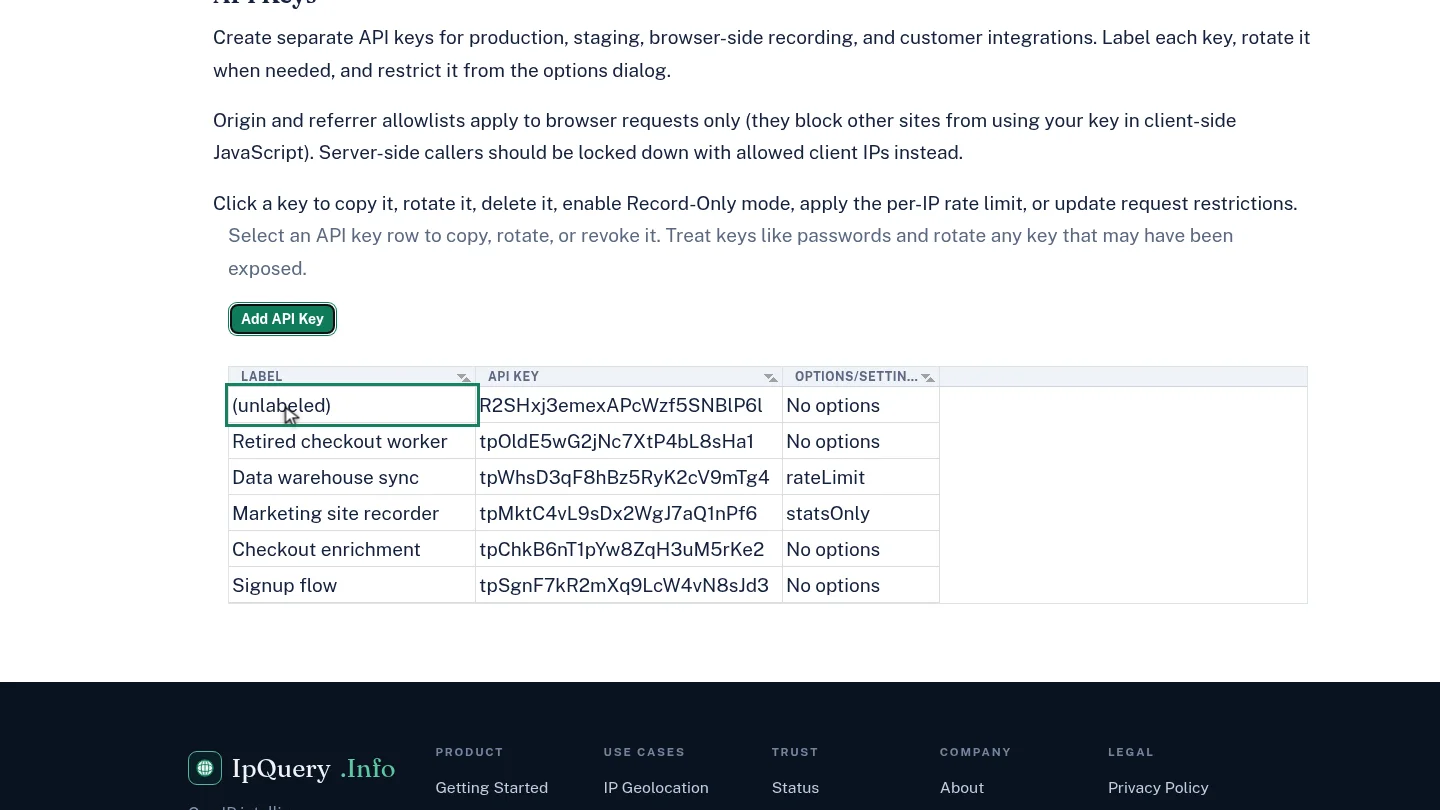
On API Keys, select Add API Key. A new key appears at the top of the table, marked unlabeled.
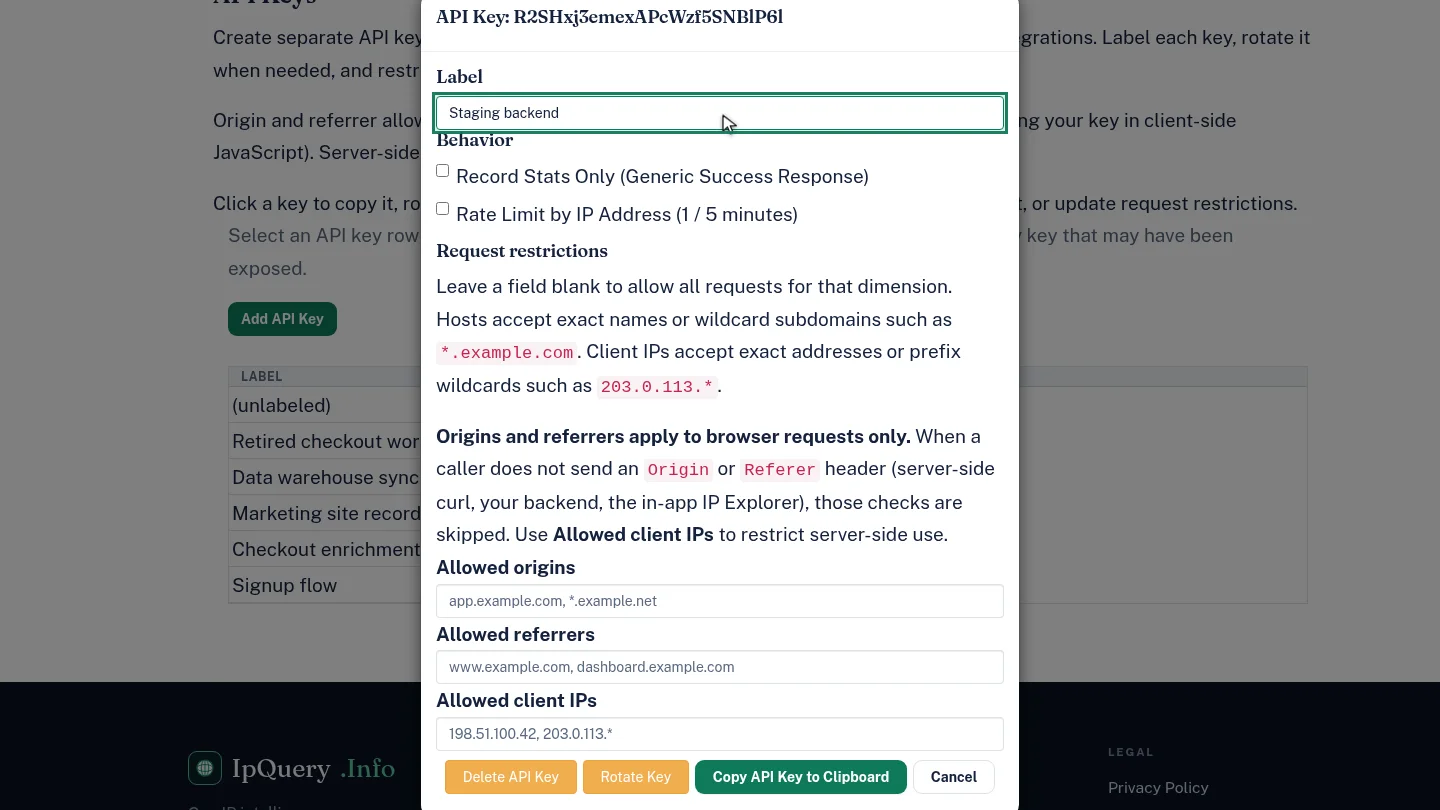
Select the new row to open its options, and type a label you'll recognise later, such as Staging backend. The label saves when you leave the field.
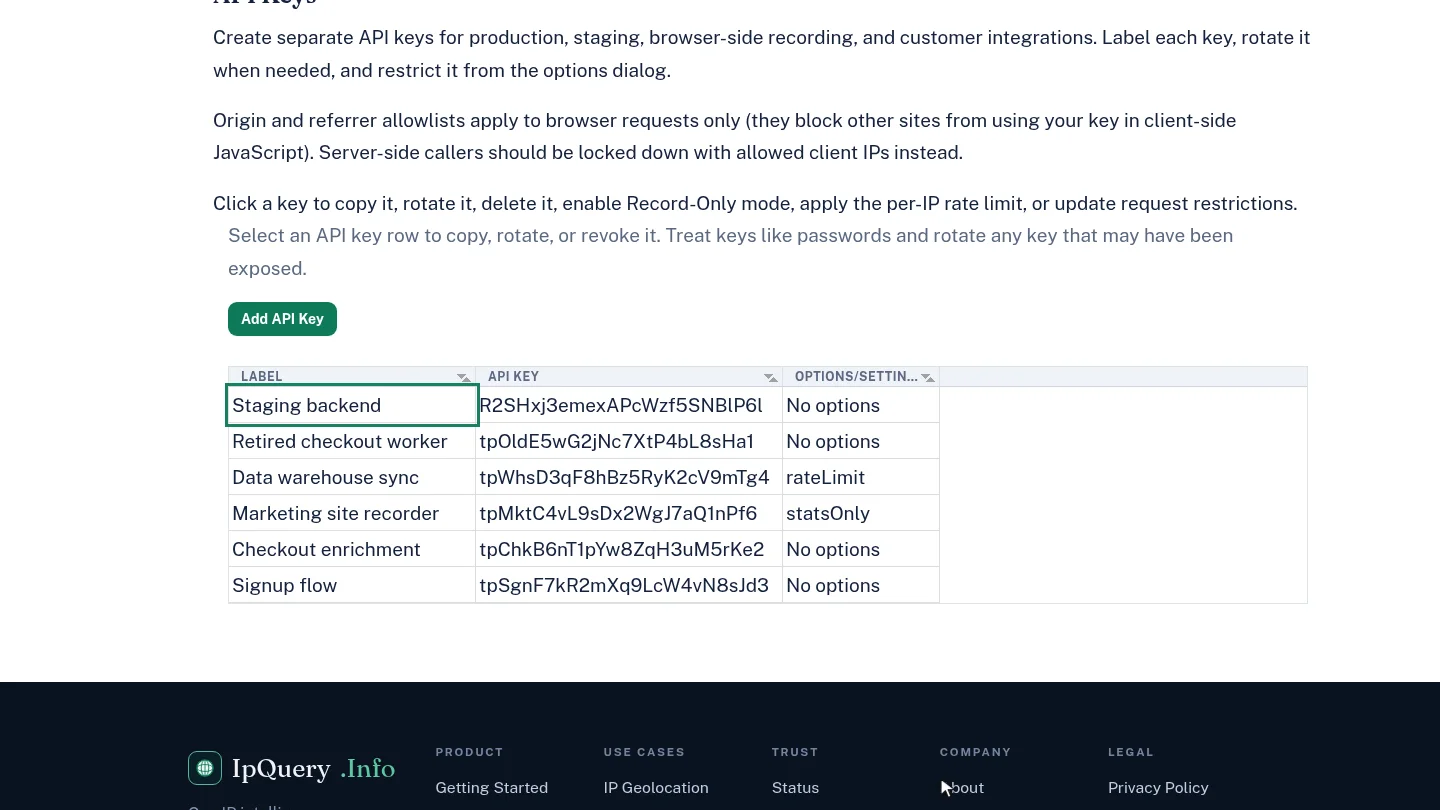
Select Copy API Key to Clipboard, and paste the key into your application's settings. Keep it secret, like a password. Then select Cancel, and the table shows the new label.
Steps
Add the key ▶ 0:06
In API Keys, select Add API Key. The new key appears at the top of the table as (unlabeled).
Label it ▶ 0:14
Select the (unlabeled) row. Under Label, enter a name for the application; it saves when you leave the field.
Copy the key ▶ 0:24
Select Copy API Key to Clipboard, then paste the key into your application's configuration. Select Cancel; the row now shows its label.
Next steps
Updated 2026-10-26
api key new api key api token credentials