How to review an IP address in IpQuery.Info
A signup from an unfamiliar network, or a checkout that doesn't match the billing country, is worth a second look. The IP Explorer shows what the API returns for one address: an estimated location, the network that owns it, and VPN, proxy and Tor flags.
Before you start
- An IpQuery.Info account (the 15-day trial includes every field)
Preview voice Narrated with a local preview voice; the final recording replaces it.
Transcript
See where an IP address is likely to be, who runs its network, and whether it looks like a VPN or proxy.
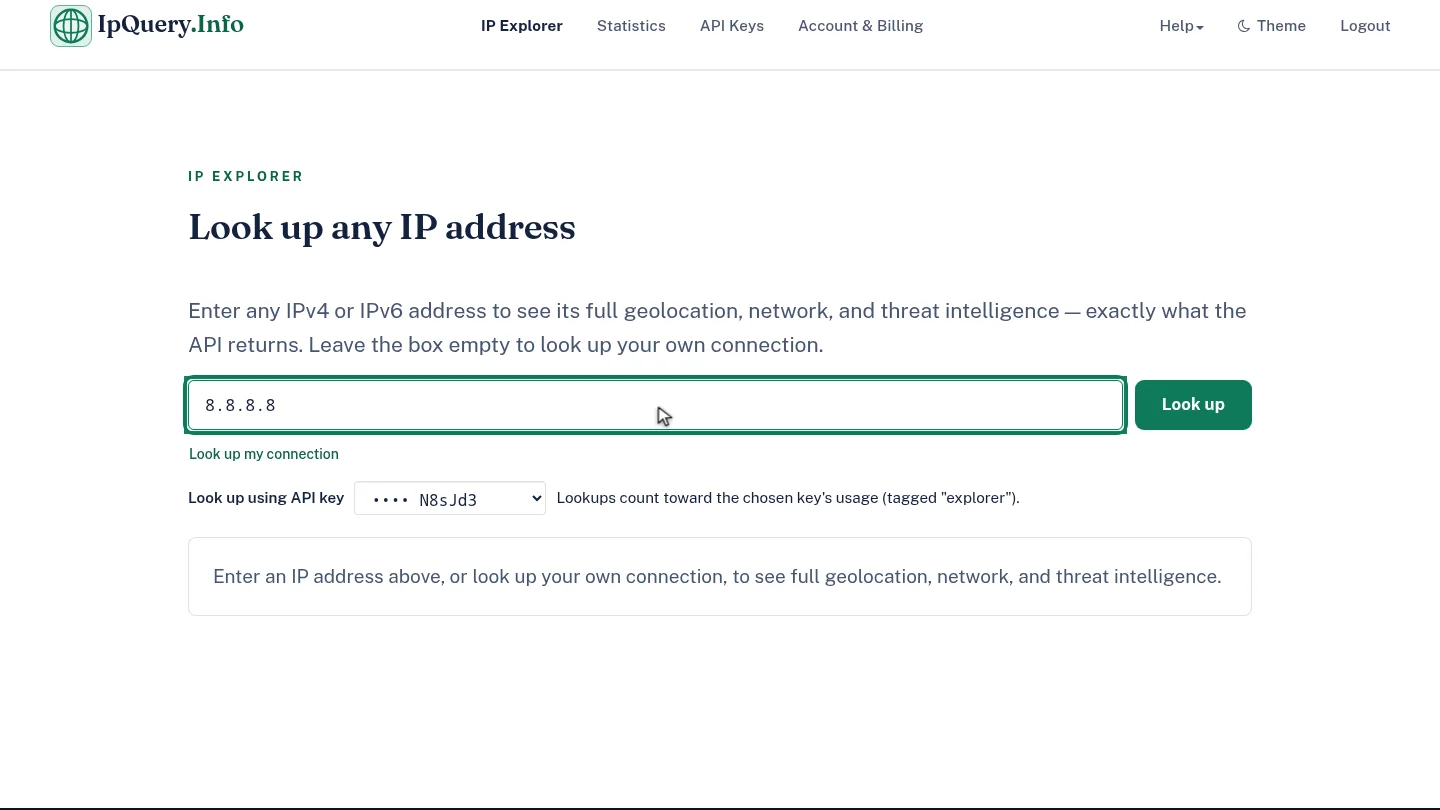
In the IP Explorer, type the address you want to check. Any IPv4 or IPv6 address works, and leaving the box empty looks up your own connection.
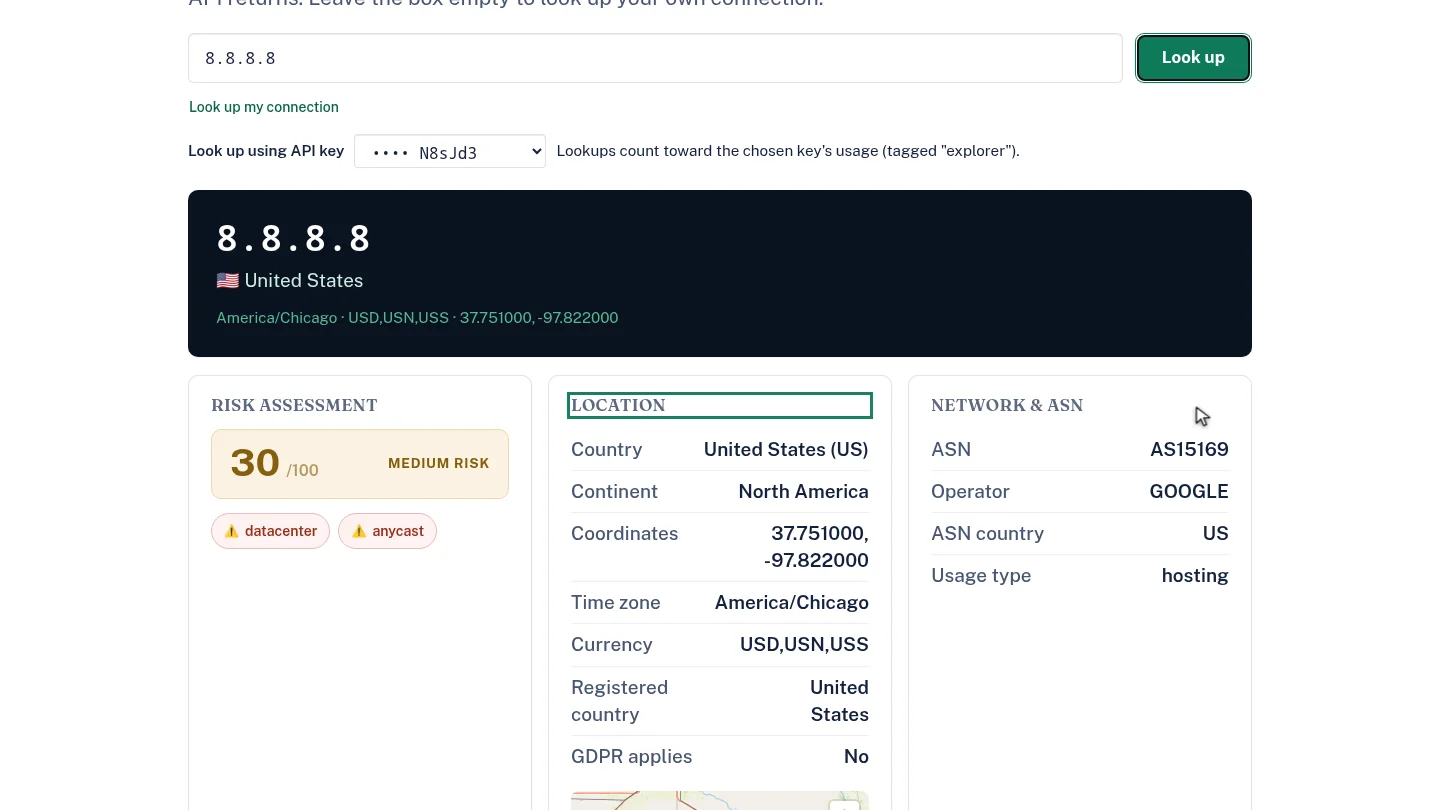
Select Look up. The result opens with the address, its estimated country, time zone and currency, and a risk score.
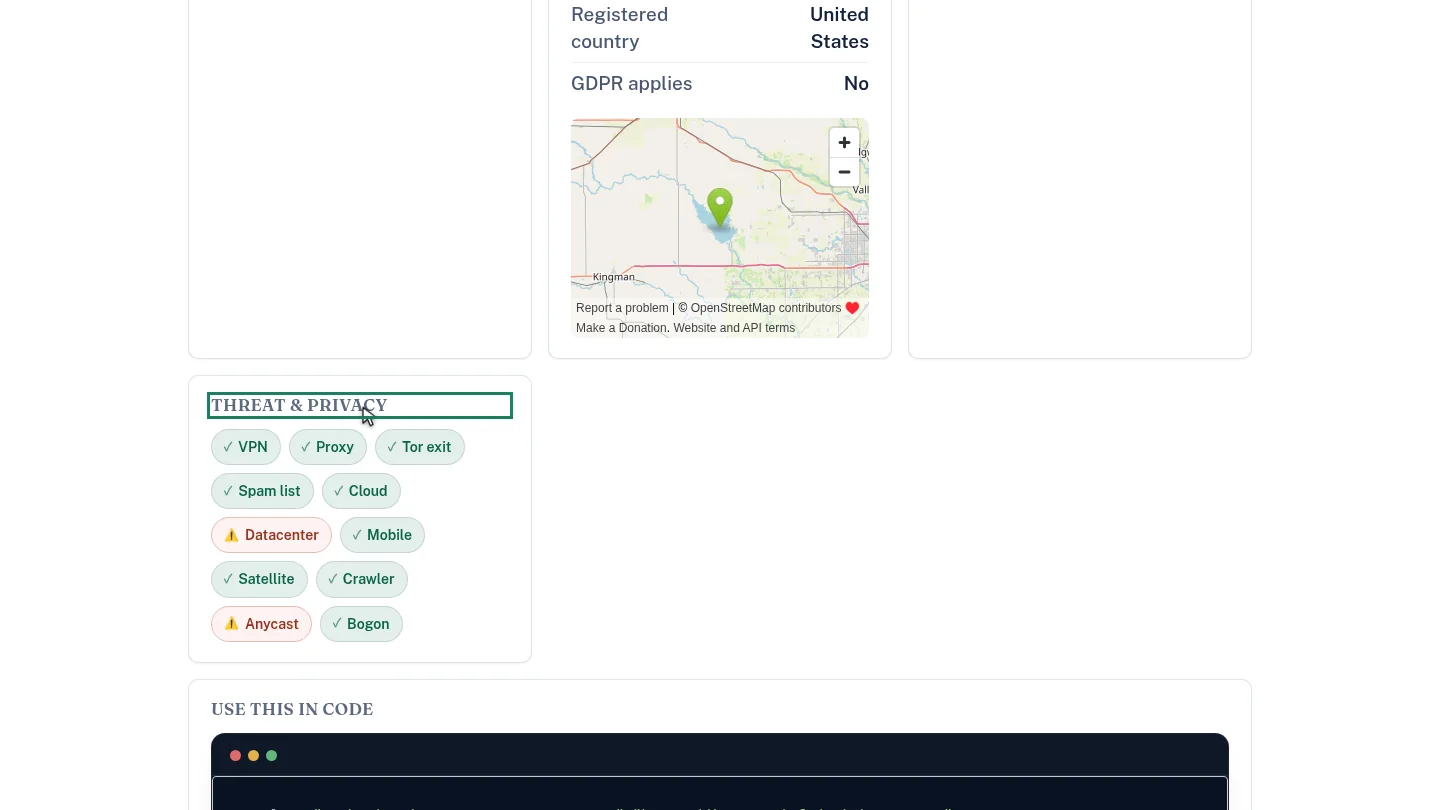
Scroll to Network and ASN to see the operator, then Threat and privacy. Flagged chips such as VPN, Proxy or Tor exit mark what to review. A location is an estimate, so treat it as a signal, not proof.
Steps
Enter the address ▶ 0:08
In IP Explorer, enter the address in the lookup box. Leave it empty, or select Look up my connection, to check your own connection.
Run the lookup ▶ 0:19
Select Look up. The result shows the address and its estimated place, with the Risk assessment and Location cards.
Read the network and threat signals ▶ 0:27
Review Network & ASN for the operator, then Threat & privacy for the VPN, Proxy, Tor exit and Bogon chips.
Next steps
Updated 2026-10-26
ip lookup ip geolocation vpn check proxy detection asn lookup where is this ip